
 |

|
| ActiveWin: Reviews | Active Network | New Reviews | Old Reviews | Interviews |Mailing List | Forums |
|
|
|
|
|
DirectX |
|
ActiveMac |
|
Downloads |
|
Forums |
|
Interviews |
|
News |
|
MS Games & Hardware |
|
Reviews |
|
Support Center |
|
Windows 2000 |
|
Windows Me |
|
Windows Server 2003 |
|
Windows Vista |
|
Windows XP |
|
|
|
|
|
|
|
News Centers |
|
Windows/Microsoft |
|
DVD |
|
Apple/Mac |
|
Xbox |
|
News Search |
|
|
|
|
|
|
|
ActiveXBox |
|
Xbox News |
|
Box Shots |
|
Inside The Xbox |
|
Released Titles |
|
Announced Titles |
|
Screenshots/Videos |
|
History Of The Xbox |
|
Links |
|
Forum |
|
FAQ |
|
|
|
|
|
|
|
Windows XP |
|
Introduction |
|
System Requirements |
|
Home Features |
|
Pro Features |
|
Upgrade Checklists |
|
History |
|
FAQ |
|
Links |
|
TopTechTips |
|
|
|
|
|
|
|
FAQ's |
|
Windows Vista |
|
Windows 98/98 SE |
|
Windows 2000 |
|
Windows Me |
|
Windows Server 2002 |
|
Windows "Whistler" XP |
|
Windows CE |
|
Internet Explorer 6 |
|
Internet Explorer 5 |
|
Xbox |
|
Xbox 360 |
|
DirectX |
|
DVD's |
|
|
|
|
|
|
|
TopTechTips |
|
Registry Tips |
|
Windows 95/98 |
|
Windows 2000 |
|
Internet Explorer 5 |
|
Program Tips |
|
Easter Eggs |
|
Hardware |
|
DVD |
|
|
|
|
|
|
|
ActiveDVD |
|
DVD News |
|
DVD Forum |
|
Glossary |
|
Tips |
|
Articles |
|
Reviews |
|
News Archive |
|
Links |
|
Drivers |
|
|
|
|
|
|
|
Latest Reviews |
|
Xbox/Games |
|
Fallout 3 |
|
|
|
Applications |
|
Windows Server 2008 R2 |
|
Windows 7 |
|
|
|
Hardware |
|
iPod Touch 32GB |
|
|
|
|
|
|
|
Latest Interviews |
|
Steve Ballmer |
|
Jim Allchin |
|
|
|
|
|
|
|
Site News/Info |
|
About This Site |
|
Affiliates |
|
Contact Us |
|
Default Home Page |
|
Link To Us |
|
Links |
|
News Archive |
|
Site Search |
|
Awards |
|
|
|
|
|
|
|
Credits |


|
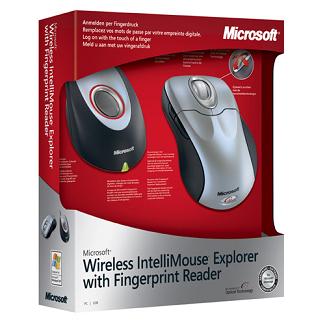
Product: Wireless IntelliMouse Explorer with Fingerprint Reader |
One of the latest hardware devices coming out of Redmond is all about adding simplicity, style and the latest technology to your desktop. Microsoft is attempting to set the bar with the debut of the new biometric fingerprint reader available. The device is also available in other combinations in addition to the Wireless IntelliMouse Explorer version reviewed here. Does this device live up to its promises? Read on to find out.
Fingerprint
Reader Technology
Now you can log on to your
computer and your favorite Web sites with the touch of your finger, without
having to remember all those passwords�simply place your finger on the
receiver whenever a password or username is required.
Scroll every which way. Now you can scroll horizontally as well as vertically through documents and Web pages. The entire wheel tilts, acts as a button, and reacts smoothly to your speed.
Finally, a solution to the top wireless hassle now you can work longer without interruption. Many users experience six months of battery life!
Work wirelessly without intrusion. Take advantage of smart technology that automatically detects interference, so you don't have to worry about interruptions.
Setup & Installation
Setup: The installation is quite simple. First, just insert the CD which comes with the fingerprint reader combo. You will install the Digital Persona Password Manager 1.0(required) software. The base is USB only. After everything is installed you will be asked to restart (this time, you actually have to restart!). Note: to install the Digital Persona Password Manager, you have to agree to the following disclosure:
The biometric (fingerprint reader) feature in this device is not a security feature and is intended to be used for convenience only. It should not be used to access corporate networks or protect sensitive data, such as financial information. Instead, you should protect your sensitive data with another method, such as a strong password that you either memorize or store in a physically secure place.
A strong password contains all of the following:
-
Seven or more characters (the longer, the better
-
Uppercase and lowercase letters
-
Numerals
-
Symbols (at least one of which in the second through sixth position)
-
At least four different characters (no repeats)
-
Looks like a sequence of random letters and numbers
A strong password must not contain any of the following:
-
Any part of your logon name
-
Actual words or names in any language
-
Numbers that are used in place of similar letters, such as "5" for "S"
-
Consecutive letters, such as "abcdefg"
-
Consecutive numbers, such as "234567"
-
Adjacent keys on your keyboard, such as "qwerty"
In addition; you can install the IntelliMouse software to
customize the keys on your IntelliMouse Explorer. However, this is not
necessary for the mouse to work.
Biometric Fingerprint Reader The Microsoft Fingerprint Reader is
combined with the wireless base of the IntelliMouse Explorer, therefore
making it larger overall than the standalone Fingerprint Reader. The base
device is almost four and half inches long, and about 2.5 inches
average width, and about an inch or so high with a weight of slightly more
than an small mouse.
The reader screen itself is a little over an inch long, and slightly less
than inch wide. A split red/silver circle encompasses the plastic reader
screen on top. The reader itself is a slightly sticky plastic material. When the
device is on, the reader lights up in the same way the bottom of the
optical mouse do. When
Windows XP loads, there is a new icon the upper left hand corner that shows
Windows is equipped with the biometric reader, however this first time you
still have to log-in with your windows password. When Windows completely
boots, the Fingerprint Registration Wizard prompts you to begin the process
of associating your fingerprints with Windows passwords. For security
reasons, you are prompted to reenter your Windows password.
Next, you are shown two hands, and you have the option to
choose which finger you would like for the password. They recommend your
index finger, but I chose the pointer finger. Now, you are directed to put
your selected finger on the fingerprint reader until the print is
recognized. When you put your finger on the reader, it lights up red, and
you can see your fingerprint on the wizard box. Quite Cool! You have to scan
your fingerprint three more times to complete the process. After you
register a finger print, you can do another finger, or all your fingers. In
addition, you can delete your fingerprint once it�s registered.
Once
you have the fingerprints registered the registration is finished. Now to
access the program, just put on of your fingers on reader and a new dialog
menu will appear. Note: this menu is not available from the start menu,
there you can only access the program properties and the registration
wizard. There is also a fingerprint reader icon that is put in the icon
tray. To
associate your fingerprint login with website, simply go to the login page
of whatever website you want (in this case I used Outlook Web Access) and
then open the one touch menu (by pressing your fingerprint to the reader). A
dialog box will come up, where you enter your login information. The next
time you go to the page the dialog box will still come up but the
information will be automatically entered by pressing your finger to the
biometric reader.
The
fingerprint login also works with Windows programs. I tested the login on
Remote Desktop connection, and that worked for logging into the
ActiveWin.com server just fine. This biometric reader is quite helpful, just
as long as you do not forget your passwords! To
change the login information for a website browse to the website in question
and click the hand icon in the title bar. Then, when you see the biometric
hands appear press your finger to the reader. This will bring up the
Fingerprint logon manager where you can add, delete or change the password
for the website. The
biometric reader supports fast user switching for Windows logins, just as
long as you have registered fingerprints for the different user accounts and
have the welcome screen and fast user switching options turned on in Windows.
There is no delay in logging into Windows, and you even can save a few
seconds off of the entry. Of course, you can still choose to login via your
password. If your computer is a member of a domain, you still have to use
your password for the initial Windows login. To
clean the Fingerprint reader, Microsoft recommends you apply the sticky side
of a piece of adhesive tape (Scotch tape) to the fingerprint reader window
and peel it away. Otherwise, wipe the window with a small piece of cloth
(not a paper towel) with Windex or similar cleaner. If cleaned properly, you
should have no problems with your device. Some
websites and programs successfully tested: Amazon, EBay, ActiveWin.com,
Hotmail Passport Login, Outlook Express Password prompt, Betaplace, MSN POP3
Login, Outlook Web Access, Lotus Notes Web Access, MSN Messenger Login. The
fingerprint reader does not work with AOL/AOL IM.
Mouse Design
The mouse has the exact
same shape as the other Microsoft Wireless IntelliMouse Explorers released
this season. The Wireless IntelliMouse Explorer is about 5 inches long, 3
inches wide, 1.5 inches high and weighs just a few ounces. The mouse
includes all five buttons (two on top, the wheel and two side). Of course,
the mouse has the Tilt will technology included, which allows you to scroll
left and right as well as having the additional button. On the bottom there
is a small compartment for the two AA batteries, which once placed in
promptly light up the optical sensor. The mouse has a silver, and black
color design and is very aesthetically appealing. The mouse employs the
power saving features as the Wireless IntelliMouse Explorer, such as:
automatically going into sleep mode with lifted off of a surface or not in
use and different illumination brightness depending on a light or dark
surface. With all of this, you can expect your mouse to last ninety days or
longer before you need new batteries (Microsoft claims up to 6 months is
possible). You can extend this life by using �Ultra Life� batteries which
generally last longer. Additionally, a pop up window will be displayed when
you are running low on battery life.
Let�s not forget the Optical Technology. The technology is now up to 6,000
frames per second and works smoothly on most surfaces (except glass and
highly reflective surfaces). The technology has been broken-in well with
previous mice since 1999, so you know you will not have any problems.
Final Comments
Installation:
95% This hardware combination is quite
interesting and innovative. If you are in the need for a new Wireless
IntelliMouse Explorer and want to try the biometric reader technology, I
would definitely go for it. I feel the reader added simplicity and
ease-of-use in logging into websites which you do not want to save the
password, etc. Those of you who do not use Internet Explorer should think
twice as the software does not work on other browsers. However, Digital
Persona is only version one of the software and the features can only be
improved from here on out. I just hope Microsoft sticks with this device and
continues to support it as time goes on. With all the different Microsoft
hardware combinations to try, choosing this product will be hardware,
especially if you want to get the new Bluetooth desktop. The IntelliMouse
Explorer is a great product, and so is the Fingerprint Reader, so if this
combo fits - definitely get it.


How It Grades
Performance: 92%
Design: 87%
Price/Value:
92%
Overall:
91.5%
Specs & Package
Overall Score
91.5%
Version Reviewed
Wireless IntelliMouse Explorer with Fingerprint Reader
Release Date
Out Now
The Good Points
Integrated Nicely with Windows
The Bad Points
Doesn't work with firefox, other browsers
The base is a little large
Similar Product
Wireless IntelliMouse Explorer
Fingerprint Reader
System Requirements
Windows XP (all editions)
Pentium 233 MHz or higher
45 MB free space
Microsoft Internet Explorer 6 or higher or MSN Explorer 8 or higher


