
 |

|
| ActiveWin: Reviews | Active Network | New Reviews | Old Reviews | Interviews |Mailing List | Forums |
|
|
|
|
|
DirectX |
|
ActiveMac |
|
Downloads |
|
Forums |
|
Interviews |
|
News |
|
MS Games & Hardware |
|
Reviews |
|
Support Center |
|
Windows 2000 |
|
Windows Me |
|
Windows Server 2003 |
|
Windows Vista |
|
Windows XP |
|
|
|
|
|
|
|
News Centers |
|
Windows/Microsoft |
|
DVD |
|
Apple/Mac |
|
Xbox |
|
News Search |
|
|
|
|
|
|
|
ActiveXBox |
|
Xbox News |
|
Box Shots |
|
Inside The Xbox |
|
Released Titles |
|
Announced Titles |
|
Screenshots/Videos |
|
History Of The Xbox |
|
Links |
|
Forum |
|
FAQ |
|
|
|
|
|
|
|
Windows XP |
|
Introduction |
|
System Requirements |
|
Home Features |
|
Pro Features |
|
Upgrade Checklists |
|
History |
|
FAQ |
|
Links |
|
TopTechTips |
|
|
|
|
|
|
|
FAQ's |
|
Windows Vista |
|
Windows 98/98 SE |
|
Windows 2000 |
|
Windows Me |
|
Windows Server 2002 |
|
Windows "Whistler" XP |
|
Windows CE |
|
Internet Explorer 6 |
|
Internet Explorer 5 |
|
Xbox |
|
Xbox 360 |
|
DirectX |
|
DVD's |
|
|
|
|
|
|
|
TopTechTips |
|
Registry Tips |
|
Windows 95/98 |
|
Windows 2000 |
|
Internet Explorer 5 |
|
Program Tips |
|
Easter Eggs |
|
Hardware |
|
DVD |
|
|
|
|
|
|
|
ActiveDVD |
|
DVD News |
|
DVD Forum |
|
Glossary |
|
Tips |
|
Articles |
|
Reviews |
|
News Archive |
|
Links |
|
Drivers |
|
|
|
|
|
|
|
Latest Reviews |
|
Xbox/Games |
|
Fallout 3 |
|
|
|
Applications |
|
Windows Server 2008 R2 |
|
Windows 7 |
|
|
|
Hardware |
|
iPod Touch 32GB |
|
|
|
|
|
|
|
Latest Interviews |
|
Steve Ballmer |
|
Jim Allchin |
|
|
|
|
|
|
|
Site News/Info |
|
About This Site |
|
Affiliates |
|
Contact Us |
|
Default Home Page |
|
Link To Us |
|
Links |
|
News Archive |
|
Site Search |
|
Awards |
|
|
|
|
|
|
|
Credits |


|
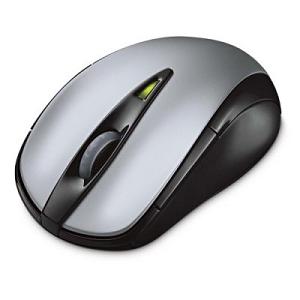
Product: Wireless Notebook Laser Mouse 7000 |
One of latest mice coming from Microsoft this season is an updated redesign of one of the most popular past mice, the Wireless Notebook Optical Mouse 3000. Microsoft combines the updated design with updated software features and its High Definition laser optical technology as well giving the mouse an affordable price tag. Can the mouse compete with the newest devices being released this year? Read on to find out:
Features
-
2.4 GHz Wireless Technology
Confident wireless connection with up to 30-foot range, even in crowded wireless environments. -
High Definition Laser Technology
Microsoft High Definition Laser Mouse products are more precise, more responsive, and deliver smoother tracking. -
Magnifier
Point and click to enlarge and edit detail using the Magnifier*. -
4-Way Scrolling
Scroll four ways for greater efficiency and comfort with Tilt Wheel Technology. -
Flip 3D
Easily flip through all open windows with Flip 3D. -
Battery Life Indicator
You won't get caught with a dead battery�the Battery Status LED Indicator glows red when the battery is running low. -
Scroll Wheel
Save time and effort with the scroll wheel�navigate documents and Web pages without using the on-screen scroll bar. -
Instant Viewer
Too many open items on your desktop? Click the scroll wheel button to instantly display your open windows, then point and click to select. -
Snap-in Receiver
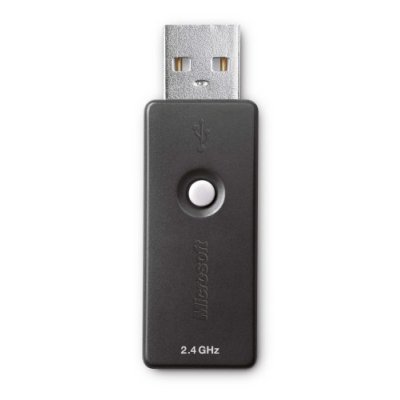
Plug in the snap-in receiver when you�re ready to work, then snap it into your mouse when you travel, preserving battery life. -
5-Button Mouse
Get quick access to the media, programs, and files you use most often with customizable buttons. -
On/Off Button
Turn your 3-in-1 device off to extend battery life even longer. -
6+ Months Battery Life
Work with less interruption with longer battery life. -
Comfortable in Either Hand
Use your mouse with your left or right hand�ambidextrous design makes it comfortable either way. -
Customizable Buttons
Get quick access to the media, programs, and files you use most often with customizable buttons. -
Designed for Notebook PCs
Compact and comfortable, our handy notebook and laptop products are designed for convenience and mobility.
* The Magnifier is not compatible with Direct3D� API in full screen mode, media players, OpenGL, and Layered Windows. If you are using Mac OS X, the Magnifier enlarges text and images on the entire screen.

Setup & Installation
Setup: The installation is simple. You have to insert the AA battery (included) in the mouse. Now, insert the USB transceiver into the computer and click the connect button on the mouse. Nothing has to be setup at all if you do not want to use the IntelliPoint features. To use the additional programmable buttons, you must install Microsoft IntelliPoint software (see below). The device is Windows Vista certified, but also works on Windows XP and Windows 2000. You can expect to receive 6 months of battery life from this mouse. When you first put the battery in the green LED lights up on the top of the mouse.
Microsoft IntelliPoint 6.1 / 6.2 Software
If you want to customize your mouse, you will have to install the new IntelliPoint 6.1 (about 45 MB - which is inclufed), which does not require a restart. To customize your mouse keys, select either "Mouse" for the Control Panel or "Microsoft Mouse" from the program menu. On the buttons tab you can click on the different buttons and reassign the keys to a variety of functions. You must use this software to assign the performance slider and instant viewer. In this software you can also change your pointers, other pointer options, view which hardware is connected, change scrolling options, etc. The software is easy to use and is required for advanced functionality of the mouse. The instant viewer feature is pretty cool - you click the tilt wheel and all the windows you have home are brought into one easy view. The magnify tool is the right button, and is the same as previous versions. Of course, you can reprogram these as necessary. Another feature is the performance slider, where you can choose between longer battery life and greater accuracy. If you want to use the new Flip 3D feature (which can be assigned to the scroll wheel, etc.), you need to go to the Microsoft Hardware website and download IntelliPoint 6.2 and install that.
Mouse Design & Use
The Microsoft Wireless Notebook Laser Mouse 7000 is about 4 inches long, 2.3 inches wide, 1.3 inches high and weighs a few ounces. The weight is less because of the one battery. The mouse includes the standard five buttons for basic mouse functionality (two on top, the wheel and two sides). The mouse has a two tone silver and black design. The black is the "glossy black" comparable to the Xbox Elite, Samsung TVs, etc. The scroll wheel is the standard translucent tilt wheel with scroll wheel detents, but seems skinnier than previous versions. The mouse has a black bottom, with a single battery compartment accessible from there. The battery compartment door is not attached and comes off easily - I'm not sure why they did not have it flip open. On the bottom are the laser optical sensor, connect button. When you insert the transceiver back onto the bottom of the mouse there is an on/off switch that cuts power. However, when I put the transceiver back for some reason the on/off switch did not go off and the mouse overheated - when I pulled it out of my laptop bag is was quite hot and did not work. Thankfully it cooled down and worked a little later when I went to write the review. There is a battery indicator on the top of the mouse which flashes if the battery is low.


In addition, Microsoft has provided the 2nd generation receiver for the mouse, which isn't as powerful as the 3rd generation transceivers available on the pricier models.

Microsoft Optical Technology
|
Microsoft has provided a well deserved update to an already great optical technology. This product includes the new Microsoft Laser Technology which aims to improve performance at much higher levels than the previous optical technology, including the High Definition Optical Technology on other Microsoft mice. The technology is 6000 frames per second (FPS) - an improvement over the 2500 FPS of most of the previous optical mice. Other technology improvements that have been made include 1000 dots per inch (DPI) resolution (responsiveness), 85 million operations per second (MOPS), .18 CMOS technology (preciseness) and the Microsoft Intelligent Tracking System (smoother tracking). The Wireless Notebook Laser Mouse 7000 has a second-generation 850 nm laser providing optical input. The tracking speed is 15 inches per second. Microsoft optical technologies have been well tested for many years now and work smoothly on most surfaces. It has been broken-in well with previous mice, so you know you won�t have any problem. |
Final Comments
| How It Grades |
|
Installation:
85% |
The Microsoft Wireless Notebook Laser Mouse 7000 is a good mouse for light-users who need an affordable wireless notebook mouse. Since I am more used to the higher-end models and am a power user, I thought this mouse was a little more cheaply made and was not for me. The on/off switch is appreciated and necessary for a notebook mouse. The new IntelliPoint 6.2 has some great new features that are definitely meant to work seamlessly with the mouse, however I hope they start including this version with the retail version. Overall, this mouse is a good buy if you are a light user and your demands are not that great.
| Specs & Package | |
| Overall Score | 88% |
| Version Reviewed | Microsoft Wireless Notebook Laser Mouse 7000 |
| Release Date | Out Now |
| The Good Points |
Ergonomic Design Laser Technology Battery Indicator One Battery Necessary Affordable |
| The Bad Points |
Not shipped with IntelliPoint 6.2 A little cheaper made then other MSFT mice Battery Door |
| In The Box |
Mouse 1 Wireless Receiver 1 AA Energizer Batteries 1 IntelliPoint 6.1 CD 1 Set of Instructions |
| Similar Product |
Microsoft Wireless Notebook Mouse 6000 Based on the design of the Wireless Notebook Optical Mouse 3000 |
| System Requirements |
For a Windows-based PC:
|


